Accend Networks San Francisco Bay Area Full Service IT Consulting Company

Categories
Blogs

Deep Dive into CloudFront

Deep Dive into CloudFront: Understanding Internal Caching Mechanisms and Implementing Websites on S3 with Region Failover Part One
Amazon CloudFront, a Content Delivery Network (CDN) provided by AWS, is key in ensuring that content is delivered swiftly to users across the globe. When paired with S3, it’s perfect for hosting fast, secure, and reliable static websites. In this article, we will explore CloudFront’s internal caching mechanisms and discuss how to implement an S3-hosted website with region failover capabilities.

What is CloudFront

CloudFront is a CDN service (Content delivery network). CloudFront caches content such as HTML, CSS, and dynamic content to a worldwide data center called Edge Location or Regional Edge location. it is used to boost your website performance by availing content closer to users all over the world.

How it works?

CloudFront caches the contents in all the edge locations around the world. Caching refers to storing frequently accessed data in high-speed hardware, allowing for faster retrieval. This hardware is known as a cache. However, caches have limited memory capacity, and it is not possible to store everything in them due to their relatively expensive hardware. We use caching strategically to maximize performance.

Cache Hierarchy in CloudFront

Regional Edge Caches: Before content reaches the edge locations, it may pass through regional edge caches. These are a middle layer that provides additional caching, helping to reduce the load on the origin server and improve cache hit ratios.

Cache Hit: This refers to a situation where the requested data is already present in the cache. It improves performance by avoiding the need to fetch the data from the source such as a disk or server. Cache hits are desirable because they accelerate the retrieval process and contribute to overall system efficiency.

Cache Miss: This occurs when the requested data is not found in the cache. When a cache miss happens, the system needs to fetch the data from the source, which can involve a longer retrieval time and higher latency compared to a cache hit. The data is then stored in the cache for future access, improving subsequent performance if the same data is requested again. Cache misses are inevitable and can happen due to various reasons, such as accessing new data or when the data in the cache has expired.

How CloudFront utilizes caching to reduce the latency and increase the performance
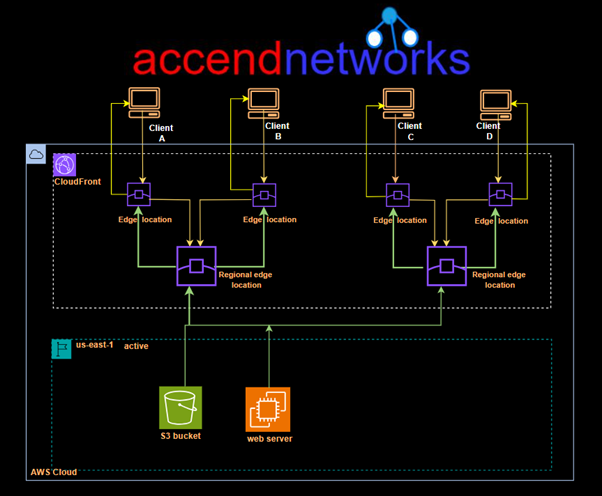
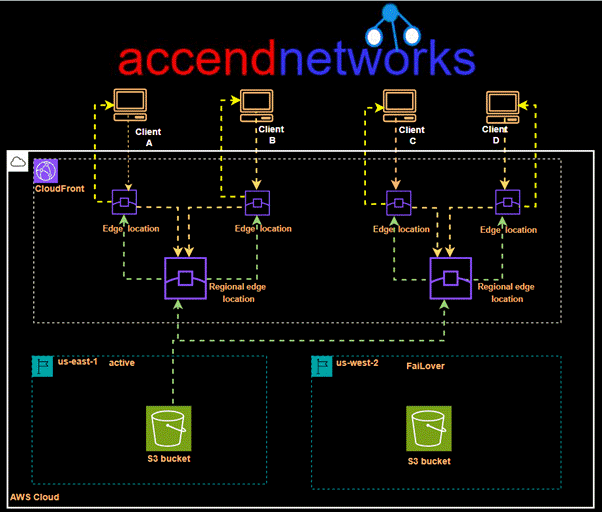
When a user requests a website, the DNS service resolves to the DNS of the CloudFront distribution, which then redirects the user to the nearest edge location. The user receives the response from that particular edge location. However, there are instances when the requested data is not present in the edge location, resulting in a cache miss. In such cases, the request is sent from the regional edge location, and the user receives the data from there if it is available, indicating a cache hit. However, this process can take some time.

In situations where the data is not present in the regional edge location either, retrieving the data becomes a lengthier process. In such cases, the data needs to be fetched from the origin server, which, in our case, is the S3 bucket. This additional step of fetching the data from the origin server can introduce latency and increase the overall response time for the user.

CloudFront origin failover

For high-availability applications where downtime is not an option, CloudFront origin failover ensures that your content remains accessible even if the primary origin server becomes unavailable. By setting up multiple origins (like two S3 buckets in different regions) and configuring CloudFront to switch to a backup origin when the primary one fails, we can maintain uninterrupted service for users, enhancing our website’s reliability and resilience.
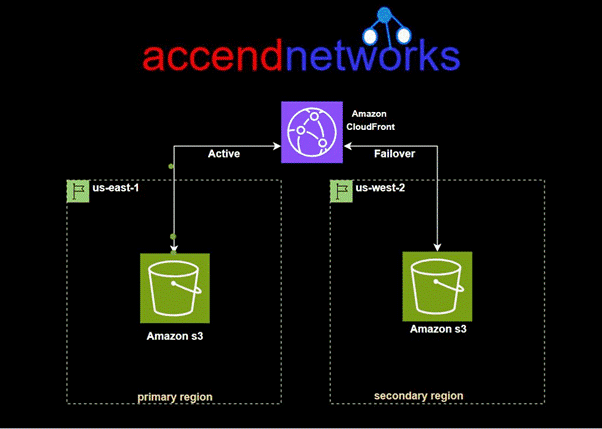
For CloudFront origin to be achieved, we create an origin group with two origins: a primary and a secondary. If the primary origin is unavailable or returns specific HTTP response status codes that indicate a failure, CloudFront automatically switches to the secondary origin.

To set up origin failover, you must have a distribution with at least two origins. Next, you create an origin group for your distribution that includes two origins, setting one as the primary. Finally, you create or update a cache behavior to use the origin group. We will demonstrate this with a hands-on in the second part of this blog.

Thanks for reading and stay tuned for more.

If you have any questions concerning this article or have an AWS project that requires our assistance, please reach out to us by leaving a comment below or email us at sales@accendnetworks.com.


Thank you!
Categories
Blogs

Expand Your EC2 Storage

Effortlessly Expand Your EC2 Storage: Increasing EBS Volume Size

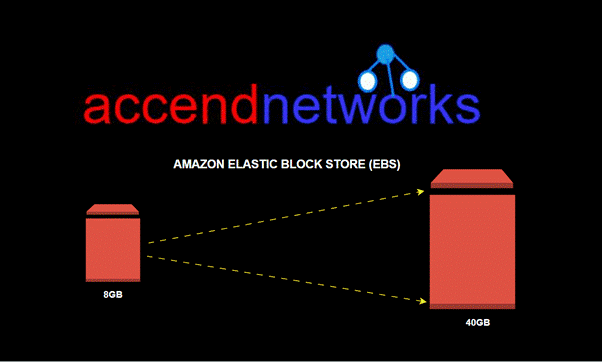
Amazon Elastic Block Store (EBS) volumes, give you a way to store data for your Amazon EC2 instances that lasts even if the cases themselves are turned off. As your applications grow and you need more space, you don’t need to worry. Amazon Web Services has made it easy to increase the size of your EBS volume without any downtime or losing your data. In this guide, we will take you through the steps to seamlessly expand your EC2 storage.

There are a few reasons why you might want to increase the size of your EBS Volume

Growing Data Requirements: As your application starts to store more and more data, the initial storage capacity might not be enough anymore.


Performance Boost: Increasing the volume size can improve the performance of certain workloads, especially when it comes to input/output operations.


Cost Efficiency: Sometimes, it’s more cost-effective to expand an existing volume rather than adding more volumes and dealing with the hassle of managing them separately.


Increasing disk size may seem complex. Do we need downtime? Should we stop the server? Do we need to detach the volume? These questions may cross your mind.


However, the reality is that we can increase disk size without detaching the volume or restarting the server. Moreover, this process doesn’t require any downtime.


We will follow the following outlined steps to achieve our objective. Ensure you have an active running EC2 instance in your AWS account or you can spin up one to follow along with this demo.

Step 1: Check the current disk status

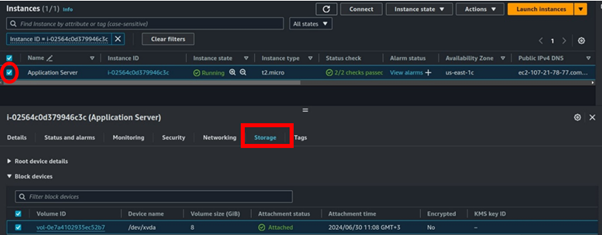
Log into the EC2 console, select your running instance then move to the storage tab, you will be able to see your volume characterized by volume ID, device name, volume size, and the attachment status.

Here I have my application server instance running with 8GB of EBS volume attached.

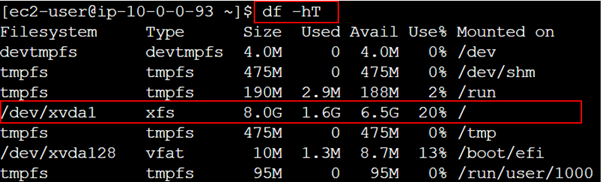
Check the disk status by using the below command.

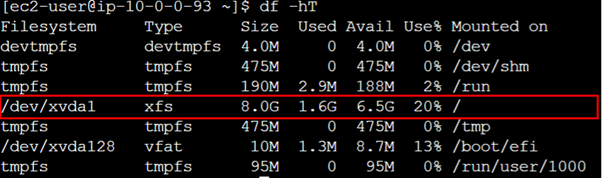
df -hT

The current disk size is 8GB and 20% is used. Now, let’s proceed with the next step.

Step 2: Create Snapshot

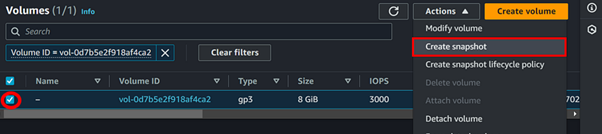
Creating a snapshot is essential to keep a backup of our existing volume in case anything unusual happens during this activity.

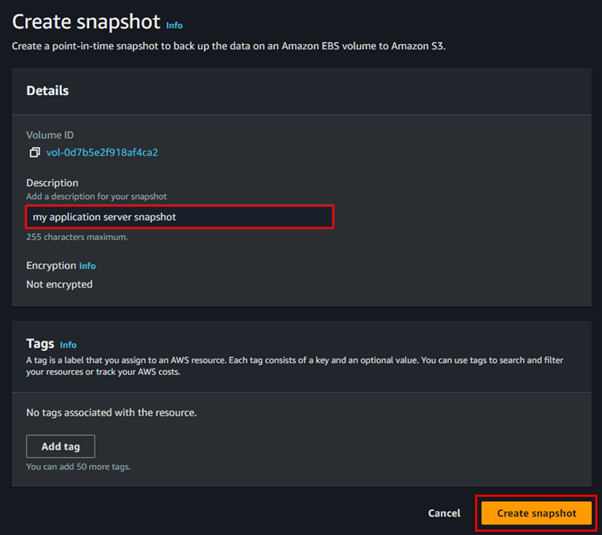
Click on the EBS volume ID attached to your EC2 instance, then select your EBS volume and click on actions > Create snapshot.

In the Create Snapshot UI, give a relevant description and tag to your snapshot then click Create Snapshot.

Go to snapshots and wait till your snapshot status shows Completed.

Step 3: Increase the EBS volume

Make sure your snapshot is created successfully before proceeding with this step.

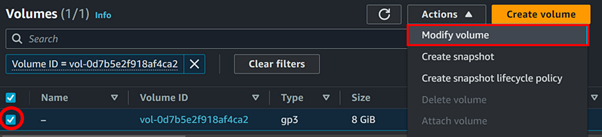
Go to the volumes section, select the volume attached to the EC2, and click on modify volume.

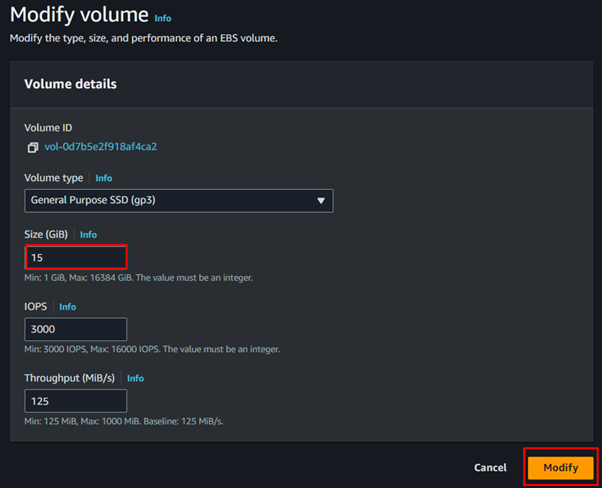
In the create volume UI, select volume type, and choose size as your desired business need, then click modify Increase the volume size as per your requirement and click on modify. Here I have changed the volume size from 8 to 15 GB.

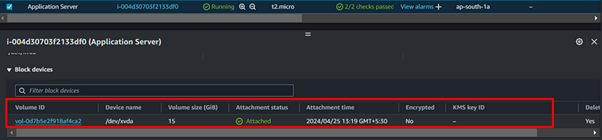
You can now see that the disk volume attached to the server is updated to 15GB.


Step 4: Resize the File System

Now we need to extend our OS file system to see our increased volume.

SSH into the EC2 instance

Run the below command to check the volume size.

df -hT

We can see that the disk size is still 8GB.

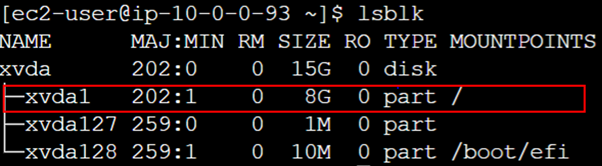
Run the below command to see information about the block devices attached to our EC2 instance.

lsblk

Here xvda1 is our current volume that is attached and xvda is the increased volume.

Extend the partition xvda by 1

sudo growpart /dev/xvda 1

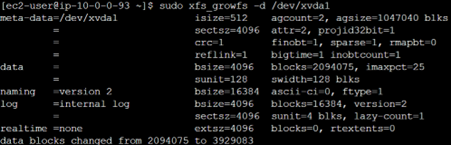
Extend the volume

sudo xfs_growfs -d /dev/xvda1

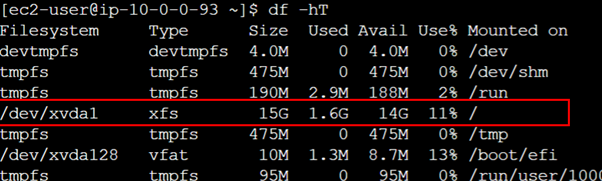
Check the volume size

df -hT

We can see that our volume size has now increased to 15GB

Conclusion

AWS provides a straightforward method to increase the volume size of EBS. We need to extend the OS file system to see the changes. increasing the size of your EBS volume is pretty simple and can be a game-changer for your growing apps.


This brings us to the end of this blog. Clean up.

If you have any questions concerning this article or have an AWS project that requires our assistance, please reach out to us by leaving a comment below or email us at sales@accendnetworks.com.


Thank you!
Categories
Blogs

EC2 Instance Connect Endpoint

EC2 Instance Connect Endpoint: Secure Access to Private Subnet Instances Without Internet

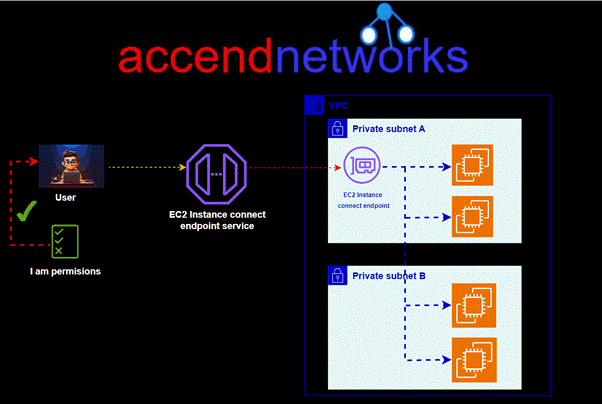
Amazon Web Services offers EC2 Instance Connect Endpoint. This powerful feature enables secure SSH access to private EC2 instances with private IP addresses without the need for managing SSH keys or bastion hosts. With EC2 Instance Connect Endpoint, we can establish SSH and RDP connectivity to our EC2 instances without relying on public IP addresses. This means we can have remote connectivity to instances in private subnets without the need for public IPv4 addresses.

What is an EC2 instance connect endpoint?

EC2 Instance Connect Endpoint allows you to connect to an instance without requiring the instance to have a public IPv4 address. You can connect to any instances that support TCP.

EC2 Instance Connect Endpoint combines AWS Identity and Access Management (IAM) based access controls with network-based controls such as Security Group rules. This combination allows you to restrict access to trusted principals and provides an audit trail of all connections through AWS CloudTrail.

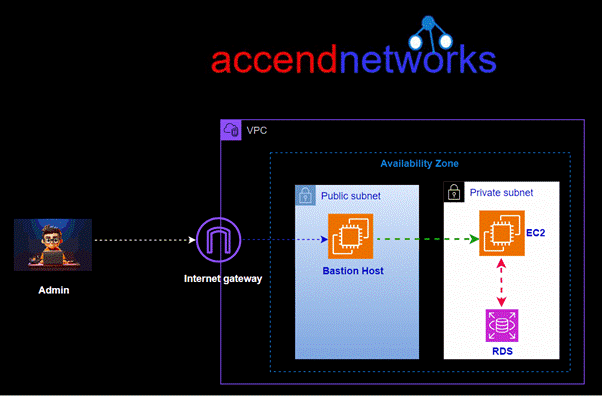
Traditional way of accessing EC2 instance in the private subnet

In the past, customers had to create Bastion Hosts to tunnel SSH/RDP connections to instances with private IP addresses. However, this approach required additional operational overhead for patching, managing, and auditing the Bastion Hosts, as well as incurring extra costs. EC2 Instance Connect Endpoint eliminates these costs and operational burdens associated with maintaining bastion hosts.

Additionally, the service facilitates detailed auditing and logging of connection requests, providing administrators with a comprehensive overview of who is accessing resources and when. This feature is invaluable for security and compliance monitoring, enabling a proactive approach to managing and mitigating potential security risks.

How it works

First, we create an EC2 Instance Connect Endpoint in a subnet in our VPC then, when you want to connect to an instance, you specify the ID of the instance. You can optionally provide the EC2 Instance Connect Endpoint. The endpoint acts as a private tunnel to the instance.

Once you create an EC2 Instance Connect Endpoint in a subnet, you can use the endpoint to connect to any instance in any subnet in your VPC provided our VPC is configured to allow subnets to communicate.

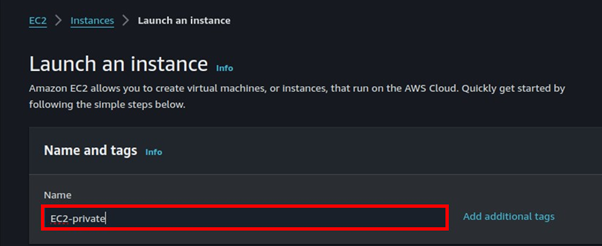
Let’s now dive into the hands-on, we will start by creating an EC2 instance.

Log in to the AWS console as a user with admin user privileges, or make sure you have the necessary permissions.

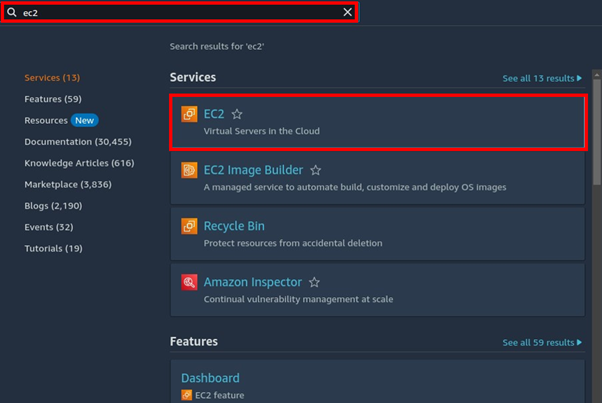
In the search bar, type EC2 then select EC2 under services to go to the EC2 console.

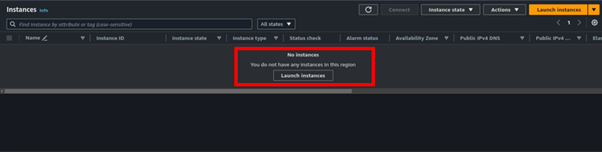
On the left side of EC2 UI, select instances then click launch instances.

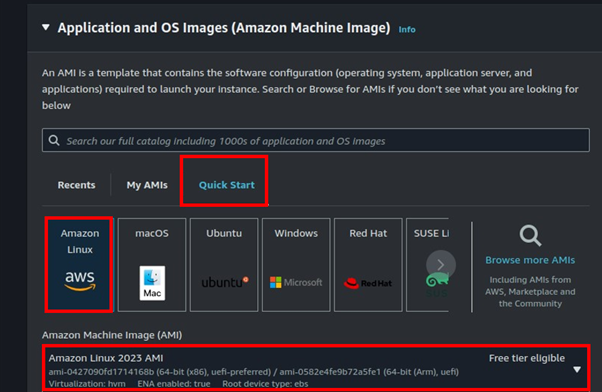
Fill in your instance details. select the QuickStart tab then select Amazon Linux AMI. Scroll down.

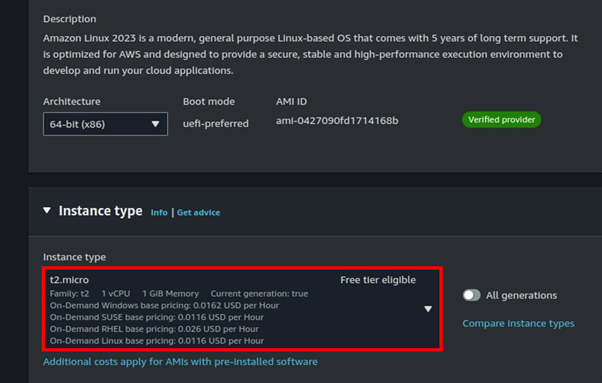
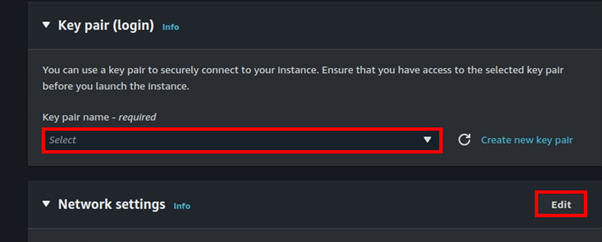
Select t2. Micro, free tier eligible. Under key pairs, we will not need them so select the drop-down button then select move without key pair.

Move to the networking tab then click edit.

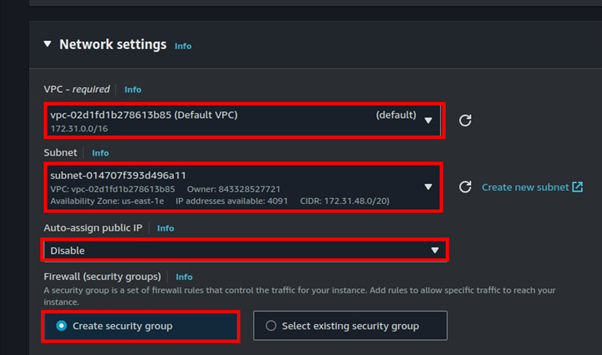
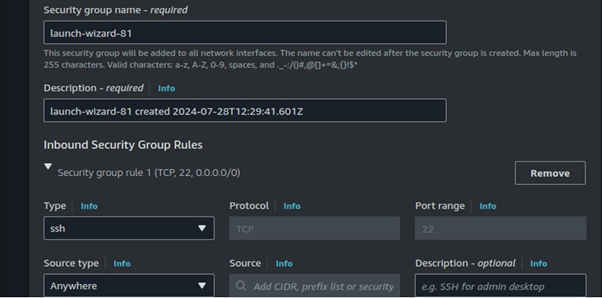
We will leverage the default VPC. Select your preferred subnet then under Auto-assign public IP, select the drop-down button and select disable. You create a security group or select one with SSH port 22 open.

Scroll down and select Create instance.

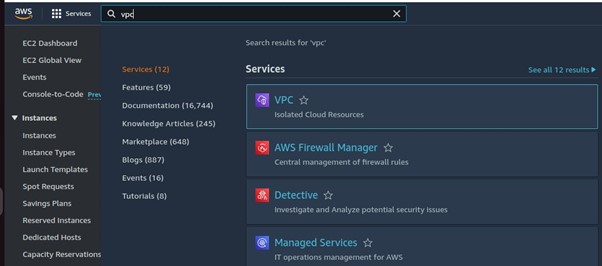
While our instance is launching let’s move to the VPC dashboard.

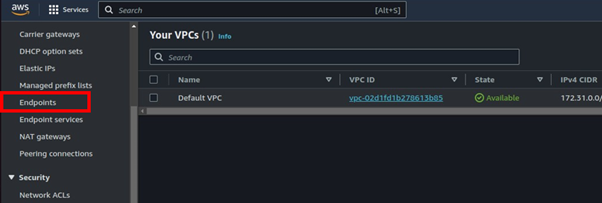
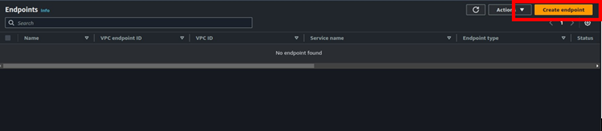
On the left side of the VPC UI, select endpoints.

Select Create Endpoint.

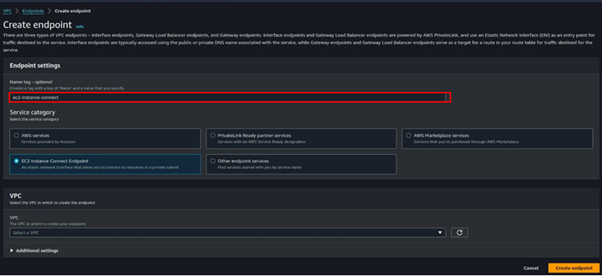
Provide the name of your endpoint. Under the service category, select the radio button for the EC2 Instance connect endpoint.

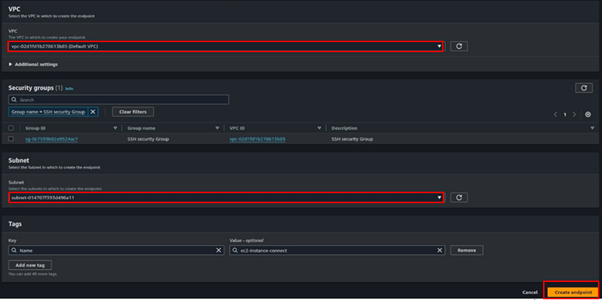
For VPC, select the drop-down button and select your VPC. Again, for subnets select the subnet where you launched the Instance. These are the only required settings. Click Create Endpoint.

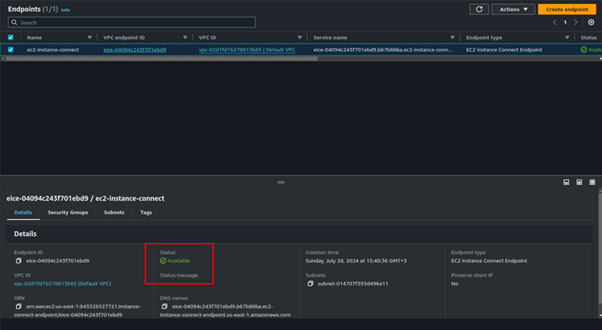
After successful creation, it will take a couple of minutes in the pending state and then become available.

After waiting for a few minutes, our endpoint is now available.

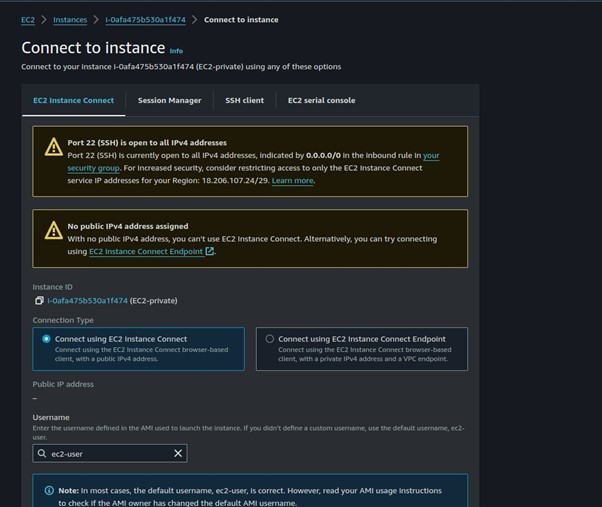
Go back to the EC2 instance dashboard, select the instance you created then select Connect. You will be brought to the connect instance dashboard.

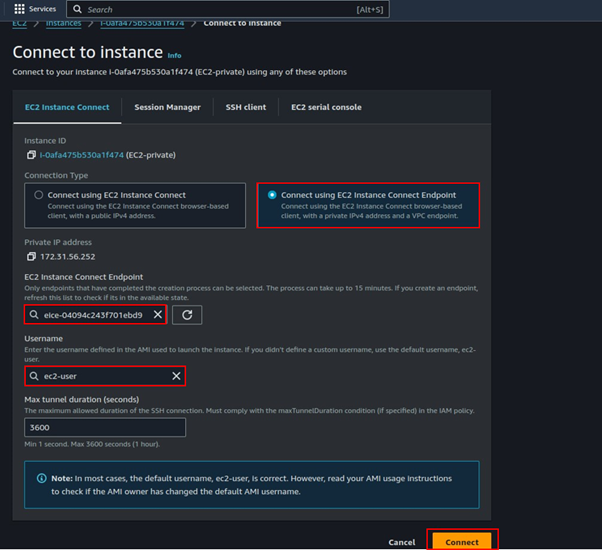
Select the radio button on connect using EC2 Instance connect Endpoint. Fill in the required details. select the endpoint you created. The user name for amazon Linux user is ec2 -user. Click connect.

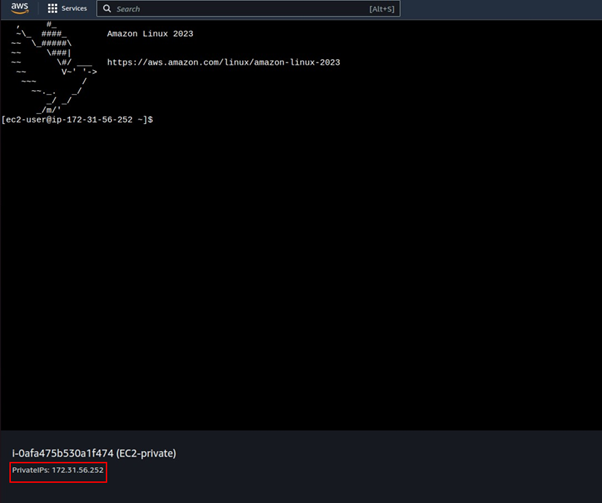
Success we are in our EC2 instance, and we can see the IP address is the private one.

We have managed to connect to an EC2 instance in the private subnet with a private IP address. Objective achieved.

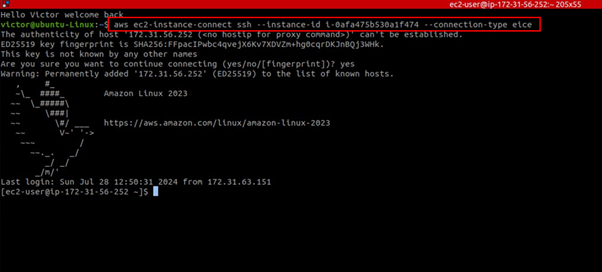
We can also use the below command to connect to the instance in our terminal. Make sure you have AWS CLI installed and configured.

This brings to the end of this blog, bring everything down.

Conclusion

EC2 Instance Connect Endpoint provides a secure solution to connect to your instances via SSH or RDP in private subnets without Internet Gateways, public IPs, agents, and bastion hosts.

Thanks for reading and stay tuned for more.

If you have any questions concerning this article or have an AWS project that requires our assistance, please reach out to us by leaving a comment below or email us at sales@accendnetworks.com.


Thank you!
Categories
Blogs

AWS X-Ray

Unlocking Application Insights and Debugging with AWS X-Ray

AWS X-Ray stands as a pivotal service within the AWS ecosystem offering developers deep insights into their application’s performance and operational issues. Moreover, it enables a comprehensive analysis of both distributed applications and microservices facilitating a seamless debugging process across various AWS services.

What is AWS X-Ray?

AWS X-Ray is a tool designed to aid developers in understanding how their applications operate within the AWS environment. It provides a detailed view of requests as they travel through your application, allowing for the identification of performance bottlenecks and pinpointing the root cause of issues.

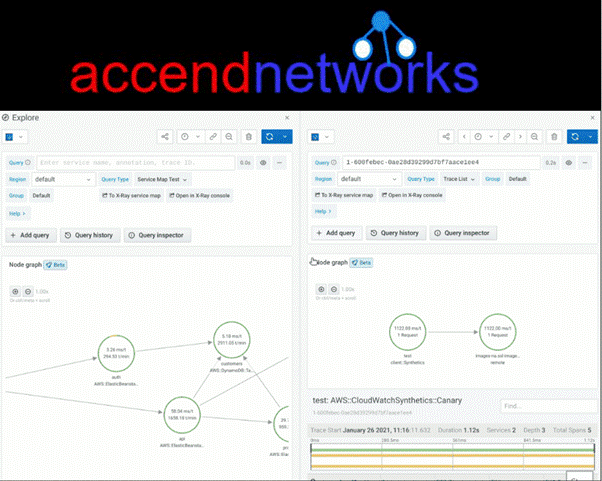
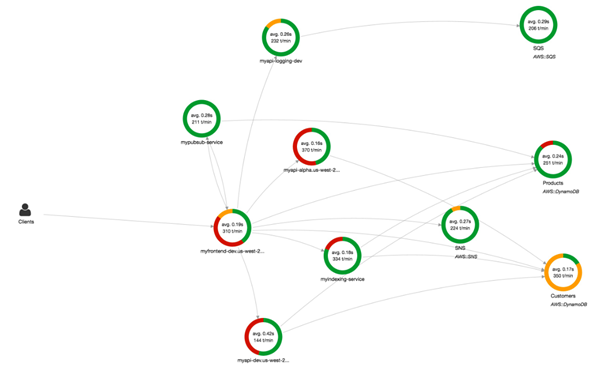
With the aid of a service map, AWS X-Ray visually depicts the interactions between services within an application, providing invaluable insights into the application’s architecture and behaviour.

How Does AWS X-Ray Work?

The functionality of AWS X-Ray can be broken down into a simple workflow that ensures detailed trace data collection and analysis. It starts with collecting traces from each component of your application, it then collects this data into what AWS refers to as traces. These traces then form a service map, offering a visual representation of the application’s architecture. This service map is crucial for analyzing application issues, as it provides detailed latency data, HTTP status, and other metadata for each service.

The Features and Benefits of AWS X-Ray

Simplified Setup

Getting started with AWS X-Ray is remarkably straightforward. Whether your application is running on EC2, ECS, Lambda, or Elastic Beanstalk. Integrating with X-Ray involves minimal configuration. This ease of setup ensures that developers can quickly start gaining insights into their applications without a steep learning curve.

End-to-End Tracing

One of the standout features of AWS X-Ray is its ability to offer an end-to-end view of requests made to your application. This application-driven view is instrumental in aggregating data from various services into a cohesive trace, thereby simplifying the debugging process.

Service Map Generation

At the heart of AWS X-Ray’s functionality is its service map feature. This automatically generated map provides a visual overview of your application’s architecture, highlighting the connections and interactions between different services and resources. It serves as a critical tool for identifying errors and performance issues within your application.

Practical Application and Analysis

Analysing Application Performance

AWS X-Ray shines when it comes to analyzing and improving your application’s performance. The service map and traces allow developers to drill down into specific services and paths, identifying where delays occur and optimizing them for better performance.

AWS X-Ray Core Concepts

Traces and Segments

At the core of AWS X-Ray’s functionality are traces and segments. A trace represents a single request made to your application, capturing all the actions and services that process the request. Segments, on the other hand, are pieces of the trace, representing individual operations or tasks performed by services within your application. For example, if a user uploads an image, the processing of that image by your application could be one segment of the trace of the user’s request.

Service Maps

Service maps visually represent the components of your application and how they interact with each other. By analyzing a service map, you can quickly identify which parts of your application are experiencing high latencies or errors. Think of it as a map of a city, where each service is a building, and the paths between them are the roads. The map shows you traffic flow and blockages, helping you navigate your application’s architecture more effectively.

AWS X-Ray Workflow

Data Collection

The first step in the AWS X-Ray workflow is data collection. As requests travel through your application, X-Ray collects data on these requests, creating traces. This data collection is automatic once you’ve integrated the X-Ray SDK with your application.

Data Processing

Once data is collected, AWS X-Ray processes it, organizing the information into a coherent structure that you can analyze. This processing stage is where traces are assembled, and service maps are generated, providing a comprehensive view of your application’s performance and interactions.

Data Analysis

The final stage is data analysis, where you, the developer, step in. Using the AWS X-Ray console, you can examine the traces and service maps, identify issues, and gain insights into how to improve your application. Whether it’s a slow database query or a faulty external API call, X-Ray helps you find and fix problems fast.

Integrating AWS X-Ray with Other AWS Services

AWS X-Ray seamlessly integrates with various AWS services, enhancing its tracing capabilities. When you use AWS Lambda, EC2, or Amazon ECS, integrating X-Ray allows you to trace requests as they move through these services, providing a unified view of your application’s performance across the AWS ecosystem.

AWS X-Ray is a valuable tool for developers and operations teams looking to improve the performance, reliability, and troubleshooting of their applications running on AWS. It’s particularly useful in microservices architectures where understanding dependencies and performance across services is crucial.

Thanks for reading and stay tuned for more.

If you have any questions concerning this article or have an AWS project that requires our assistance, please reach out to us by leaving a comment below or email us at sales@accendnetworks.com.


Thank you!
Categories
Blogs

Smart Space with Cisco Spaces

Transform Your Space Into a Smart Space with Cisco Spaces [Beginner's Guide]

As a business owner or manager, you’re always looking for ways to create a trusted workplace, improve productivity, and optimize operational efficiency, all from one place while reducing your operational costs.

You need access to real-time data moving in and out of your premises to achieve this.

Fortunately, every phone, camera, laptop, and IoT device connected to your network provides real-time insights. You can leverage this data to make your business safer, your building smarter, and your wireless connectivity more seamless.

Enters Cisco Spaces, a cloud-based location services platform.

Let’s discover Cisco Spaces and how you can use this platform to create a productive, efficient, and enjoyable workplace.

What is Cisco Spaces - A Brief Introduction

Cisco Spaces (formerly Cisco DNA Spaces) is the highest-ranked indoor location-aware and IoT cloud platform that turns ordinary physical spaces into smart spaces. It provides 24/7 centralized visibility, control, and monitoring of people and objects within your premises via its single web-based dashboard.

Using Cisco Spaces, you can:

  • Locate available meeting rooms.
  • Track indoor environmental conditions.
  • Monitor and share occupancy levels in real-time staff and visitors.
  • Enable multiple apps, devices, and use cases from the dashboard.
  • Securely connect users to your network and offer personalized IT experiences.
  • Integrate with your existing Cisco platforms, third-party IoT sensors, and multivendor apps for smart and sustainable operations.

Getting Started with Cisco Spaces

Configuring Cisco Spaces might seem complex in the beginning, but with a step-by-step process, you can easily get started with this valuable tool:

Step 1: Familiarize yourself with the platform.

Create and link your Cisco Spaces account to your existing Cisco Wi-Fi infrastructure. Then, explore the dashboard that showcases all key analytics, reports, and tools available to you.

Step 2: Quick implementation

Cisco Spaces provides a variety of pre-built templates for different use cases. You can select a suitable template to quickly implement the provided solutions according to your use cases.

Step 3: Enable location analytics

Track visitor behavior metrics, from an average number of visits to time spent in a particular area and the busiest hours of the day and days of the week. Accordingly, you make data-driven staffing and resourcing decisions that further help optimize your business operations.

Step 4: Integrate engagement apps

Send contextual and personalized messages to your visitors via SMS, email, collaboration apps, and push notifications based on their behavioral patterns. You can also send real-time updates to your staff and teams through API triggers facilitated by Cisco Spaces engagement apps.

Step 5: Environmental analytics app

Optimize your building’s performance by leveraging indoor environment insights and metrics, such as carbon dioxide levels, total volatile organic compounds (TVOCs), temperature, humidity, and ambient noise. This data is derived from sensors integrated into your building’s networking and collaboration infrastructure. Accordingly, you can take the necessary steps to ensure optimal indoor conditions within your facilities.

Step 6: Proximity Reporting App

The app assists in contact tracing by showing which physical spaces a person is in based on the devices they carry and other devices in the same space. The app also shows a list of persons in the same location and a timeline of when the affected person entered and exited the location.

As you become more familiar with Cisco Spaces, you can start exploring the platform’s advanced features, such as contactless experiences, real-time space utilization, Cisco Spaces SDK, and many more.

On our blog, you will find resources, including tutorials, step-by-step guides, best practices, and more information, to help you leverage the full potential of Cisco Spaces. Subscribe to our blog so you never miss anything essential for creating a smart, safe, and efficient work environment. Stay tuned!