Accend Networks San Francisco Bay Area Full Service IT Consulting Company

Categories
Blogs

Azure Roles and RBAC Privilege Identity Management

Using Azure Roles and RBAC Privilege Identity Management (PIM)

In today’s digital landscape, managing access to resources securely and efficiently is paramount. Microsoft Azure offers a robust solution in the form of Azure Roles and Role-Based Access Control (RBAC) Privilege Identity Management (PIM). This article delves into how these tools can optimize your identity access management, enhance security, and offer cost-effective benefits for your organization.

Introduction to Azure Roles and RBAC

Azure Roles and RBAC are essential components in managing permissions and access control within the Azure environment. Azure Roles define a set of permissions that users or groups can have within your Azure subscription. RBAC allows you to assign these roles to users, groups, and applications at various scopes.

Key Benefits of Using Azure Roles and RBAC

Enhanced Security: By implementing Azure Roles and RBAC, you can ensure that users have only the permissions they need to perform their tasks. This principle of least privilege minimizes the risk of unauthorized access and potential security breaches.

Granular Access Control: RBAC enables you to assign specific permissions at different levels, such as subscription, resource group, or resource level. This granularity ensures that access control is tailored to your organization’s needs.

Improved Compliance: Azure RBAC helps in maintaining compliance with industry standards and regulations by providing detailed audit logs and reports on who accessed what resources and when.

Simplified Management: With Azure Roles and RBAC, managing permissions becomes streamlined. Changes can be easily implemented, reducing the administrative overhead.

Introduction to Privilege Identity Management (PIM)

Privilege Identity Management (PIM) in Azure AD enhances the capabilities of RBAC by adding a layer of security for privileged roles. PIM allows you to manage, control, and monitor access to critical resources, ensuring that privileged access is granted only when necessary.

Advantages of Using PIM

Just-in-Time Access: PIM enables just-in-time (JIT) access, allowing users to activate their roles only when needed. This reduces the window of opportunity for potential attacks.

Approval Workflows: With PIM, you can set up approval workflows for activating privileged roles. This ensures that access is granted only after proper verification and authorization.

Access Reviews: Regular access reviews can be conducted to ensure that the right people have the right access. This helps in maintaining up-to-date and accurate access controls.

Audit Logs: PIM provides detailed audit logs and alerts, helping you track and monitor all privileged access activities.

Implementing Azure Roles and RBAC with PIM: A Step-by-Step Guide

Step 1: Define Azure Roles

  • Identify the roles required within your organization.
  • Create custom roles if necessary.

Step 2: Assign Roles Using RBAC

  • Navigate to the Azure portal.
  • Select the appropriate scope (e.g., subscription, resource group).
  • Assign roles to users, groups, or applications.

Step 3: Configure PIM

  • Enable PIM in the Azure AD portal.
  • Define which roles will be managed by PIM.
  • Set up JIT access and approval workflows.

Step 4: Perform Access Reviews

  • Schedule regular access reviews.
  • Review and adjust roles as needed.

Step 5: Monitor and Audit

  • Regularly monitor audit logs.
  • Set up alerts for any unusual activities.

Optimizing Cost with Azure Roles and RBAC

Using Azure Roles and RBAC effectively can lead to significant cost savings for your organization. By ensuring that users only have the permissions they need, you can reduce the risk of costly security incidents. Additionally, streamlined management and automation reduce administrative overhead, leading to lower operational costs.

Client Benefits

Implementing Azure Roles and RBAC with PIM offers numerous benefits for clients:

  • Enhanced Security: Protect sensitive data and resources with granular access control and JIT access.
  • Compliance: Maintain compliance with industry standards through detailed audit logs and access reviews.
  • Efficiency: Streamline access management processes, reducing administrative overhead and operational costs.
  • Scalability: Easily scale access control as your organization grows, ensuring consistent security and compliance.

Conclusion

Azure Roles RBAC and Privilege Identity Management provide a comprehensive solution for managing access to resources in the Azure environment. By implementing these tools, organizations can enhance security, ensure compliance, and optimize cost management. For more information and to implement these solutions in your organization, contact us info@accendnetworks .com for expert identity access management services.

Contact Us: To learn more about how Azure Roles and RBAC Privilege Identity Management can benefit your organization, email us at info@accendnetworks.com. Our team of experts at “Company name” is ready to assist you in enhancing your security and optimizing your access management.
Categories
Blogs

Cisco Secure Email

Cisco Secure Email
  1. Email Notifications
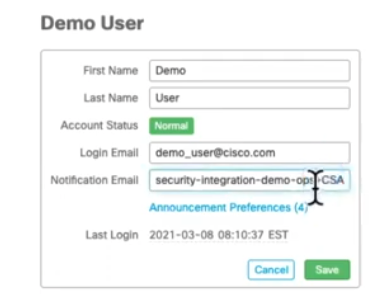
    Get email notifications on critical security issues; system outages and important product updates, normal console or connector updates, information Cisco training sessions, and QBR.Go to my Account on upper right hand corner under my account and it should have notification email

    Click on Announcement Preferences and select the boxes that you would like to receive notification.
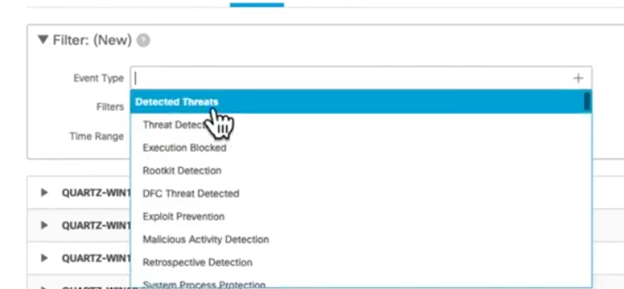
  2. Go Dashboard -> Events

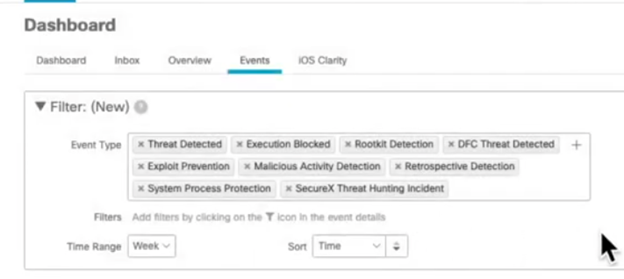
    Select “Detected Threats” for Event Type and it will auto populate all threats detected in the environment.

    Example:

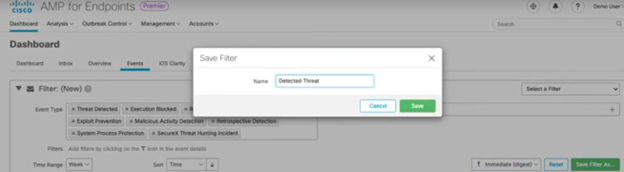
    Select to be notified “immediate (digest)” and choose “Save Filter As” and save the report as “Detected Threat” and you will be notified via email of any threats detected.

Categories
Blogs

AWS Key Management Service Part One

Unlocking the Power of AWS Key Management Service (KMS) Part One

aws-key-management-service

In today’s digital error, robust security solutions are essential as businesses migrate to the cloud. Encryption is essential for protecting sensitive data in transit and at rest. Amazon Web Services (AWS) provides a comprehensive encryption solution with its Key Management Service (KMS). In this article, we’ll explore what AWS KMS is, its features, and how it can enhance your security posture. stay tuned.

What is AWS KMS?

AWS Key Management Service (KMS) is a managed service that makes it easy to create and control the cryptographic keys used to encrypt your data. It integrates with other AWS services to simplify the encryption of your data across AWS.

Key Features of AWS KMS

Centralized Key Management: AWS KMS allows you to manage your encryption keys centrally, giving you full control over their lifecycle. You can create, rotate, disable, and delete keys as needed, all from a single management console.

Integration with AWS Services: KMS is deeply integrated with many AWS services, including Amazon S3, Amazon EBS, Amazon RDS, and AWS Lambda, among others. This integration simplifies the process of encrypting data stored in these services.

Scalability: AWS KMS is built to scale with your needs. Whether you’re managing a handful of keys or thousands, KMS provides the infrastructure to handle your requirements efficiently.

Access Control and Policies: AWS KMS provides fine-grained access control through AWS Identity and Access Management (IAM) policies and KMS-specific key policies. This ensures that only authorized users and services can access your keys.

Audit and Compliance: AWS KMS integrates with AWS CloudTrail to log all key usage and management activities. This audit trail helps you meet compliance requirements and gain visibility into how your keys are being used.

Automatic Key Rotation: To enhance security, AWS KMS supports automatic key rotation. You can set policies to rotate your keys on a regular schedule without disrupting your applications.
How AWS KMS Enhances Security

Data Encryption: At its core, AWS KMS provides the ability to encrypt data using symmetric (AES-256) and asymmetric encryption keys. Symmetric keys are used for a wide range of encryption tasks, while asymmetric keys can be used for tasks like digital signing and key exchange. 

KMS Keys

KMS keys are divided into two types of keys.

  • Master Key
  • Data Key

Master Key: Also known as Customer Master Key (CMK). It is used to generate encrypted data keys so that encrypted keys can be securely stored by your service.

The maximum size of data that can be encrypted using the master key is 4KB. CMK is created within the KMS and cannot leave the KMS console unencrypted. 

AWS KMS also supports multi-region CMKs, which let you encrypt the data in one AWS Region and decrypt it in a different AWS Region.

The Customer Master Key itself is classified into three types:

  • Customer Managed CMK: In this, you are in full control of creating, managing, and deleting the keys. It provides complete granular-level access control. The responsibility of managing the keys includes creating, granting, and enabling key policies, adding tags, and rotating the key.You are the master of your key.
  • AWS Managed CMK: These CMKs are created, managed, and used on your behalf by an AWS service that is integrated with AWS KMS. You can view and track their usage but cannot delete or do modifications.
  • AWS-owned CMK:These CMKs are completely owned and managed by AWS for use in multiple AWS accounts. You have no control over them. You cannot view, manage, or use AWS-owned CMKs or audit their use.

Data Key

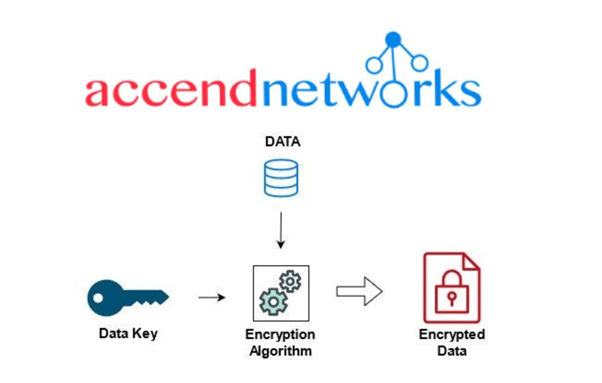
Data Keys are the encryption keys that you can use to encrypt and decrypt data outside the KMS. It can encrypt and decrypt large volumes of data in other AWS Services such as EBS, S3, EFS, etc. CMK is used to generate, encrypt, and decrypt data keys.

Encryption of Data using KMS

The process of encryption of data using KMS is also known as Envelope Encryption or KMS Two Tier Architecture.

Envelope Encryption

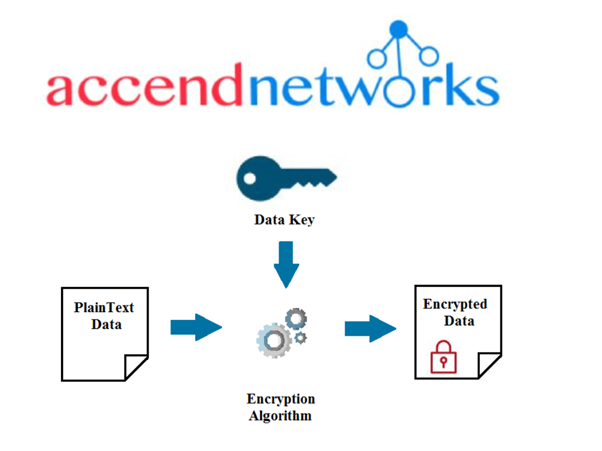
KMS employs a technique known as envelope encryption, where data is encrypted with a data key, which in turn is encrypted with a master key stored in KMS. This approach minimizes the exposure of the master key and enhances security.

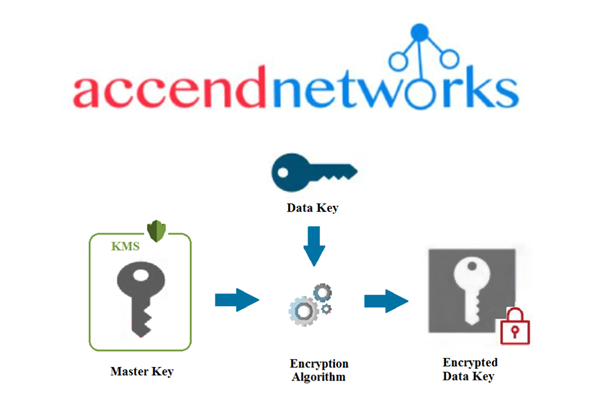
Encryption Process

Step: 1 Plaintext data will be encrypted using a data key and result in encrypted data.

Step: 2 The Data key will be encrypted using a master key (CMK) and result in an encrypted data key.

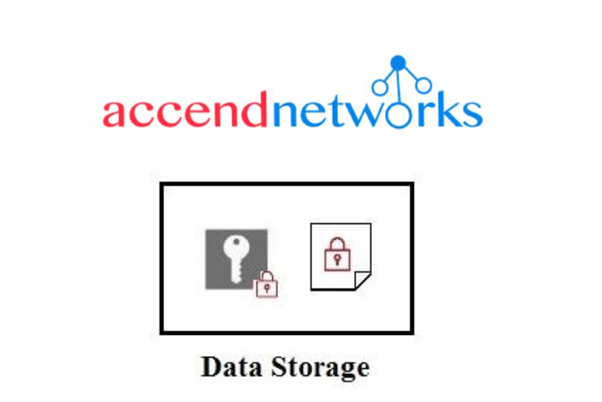
Step: 3 Now encrypted data key is stored together with the encrypted data.

Step: 4 Later, the Data key will be deleted.

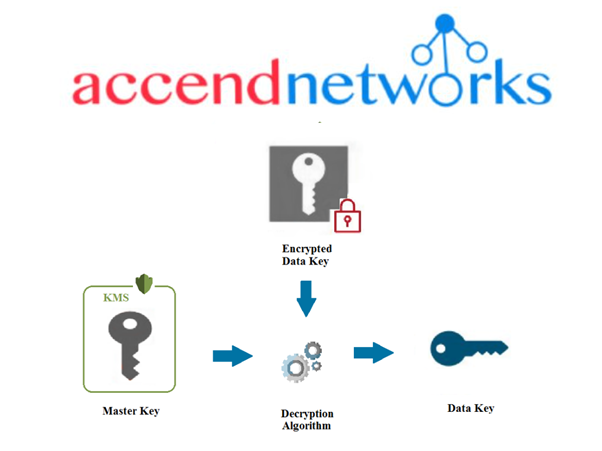
Decryption Process

Step: 1 For decryption of data you require a data key which can be obtained by asking the master key to decrypt the encrypted data key.

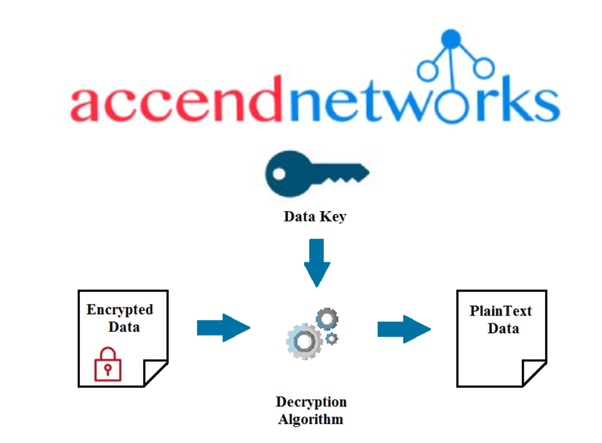
Step: 2 After decryption of the encrypted data key we obtained a data key which is now used to decrypt the data.

Conclusion

In summary, AWS KMS is a robust tool for managing your encryption keys, enhancing your security posture, and ensuring compliance with industry standards and regulations.

This brings us to the end of this blog, thanks for reading, and stay tuned for more.

If you have any questions concerning this article or have an AWS project that requires our assistance, please reach out to us by leaving a comment below or email us at sales@accendnetworks.com.

Thank you!

Categories
Blogs

Secure Uploads and Downloads in S3

Secure File Uploads and Downloads in S3 Using Presigned URLs

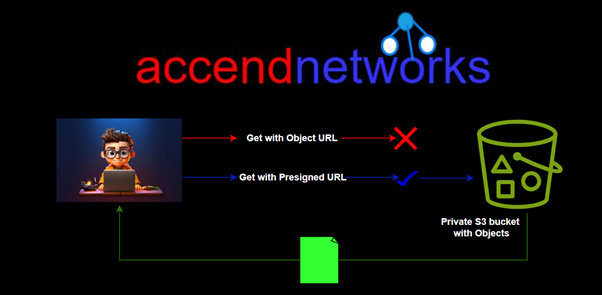
Amazon Simple Storage Service (S3) is a highly scalable object storage service used for storing and retrieving large amounts of data. While S3 provides a straightforward way to manage files, ensuring secure access to these files is crucial. One effective method to securely upload and download files from S3 is by using presigned URLs. This article delves into what presigned URLs are, how they work, and a hands-on demo.

S3 Presigned URL

Presigned URLs are URLs that provide temporary access to objects in S3 without requiring AWS credentials directly from the user. When you create a presigned URL, you essentially generate a URL that includes a signature, allowing anyone with the URL to perform specific actions (like upload or download) on the specified S3 object within a limited time frame.


When you create an S3 bucket, it is private by default, and it is up to you to change this setting based on your needs. If you want a user to upload or download files in a private bucket without making the bucket public or requiring AWS credentials or IAM permissions, you can create a presigned URL.

Presigned URLs work even if the bucket is public, but the main purpose of presigned URLs is to help you keep objects private while allowing limited and controlled access when necessary.

Requirements for Generating Presigned URLs

A presigned URL must be generated by an AWS user or an AWS application that has access to the bucket and the object in the bucket at the time of creation. When a user makes an HTTP call with the presigned URL, AWS processes the request as if it was performed by the entity that generated the presigned URL.
Usage and Expiration

Presigned URLs can be shared with temporarily authorized users to allow them to download or upload objects. They can only be used for the method specified when generating the URL. For example, a GET-presigned URL cannot be used for a PUT operation.
There is no default limit on the number of times a presigned URL can be used until it expires.

Get presigned URLs

A GET-presigned URL can be used directly in a browser or integrated into an application or webpage to download an object from an S3 bucket. It can be generated using the AWS Management Console, AWS CLI, or AWS SDK.

In the following, I will demonstrate how to generate a GET-presigned URL using the AWS Management Console.

Generating Get presigned URL with the console

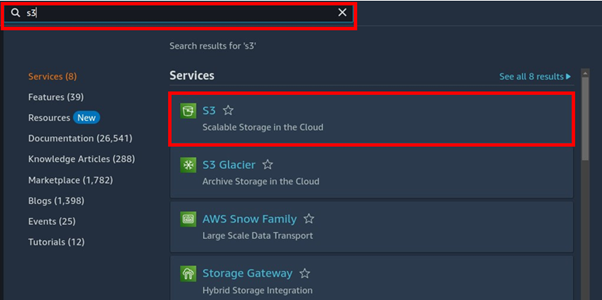
Log in to the management console, in the search box, type s3 then select s3 under services.

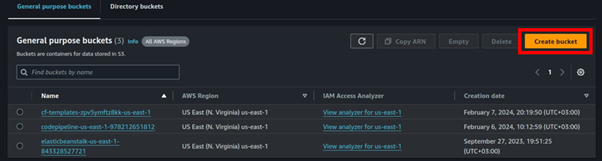
In the s3 UI select Create Bucket.

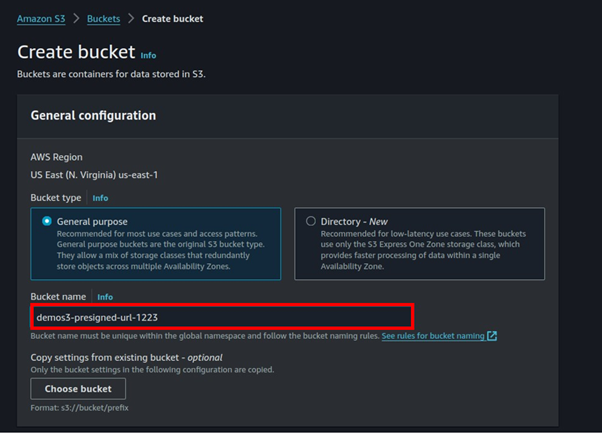
In the create bucket UI, select a unique name for your bucket then Scroll down.

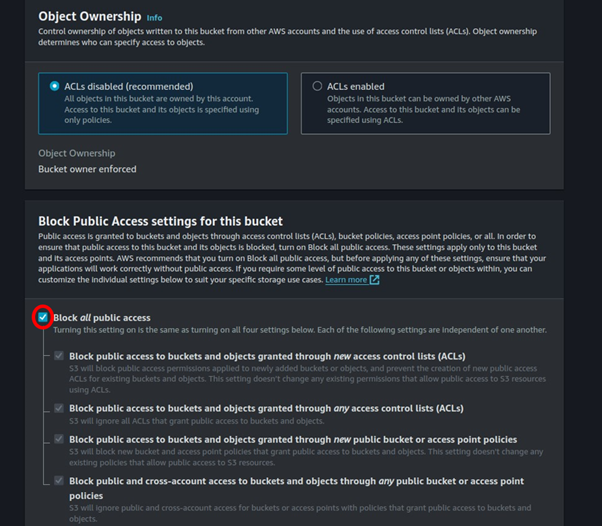
Make sure all public access is blocked.

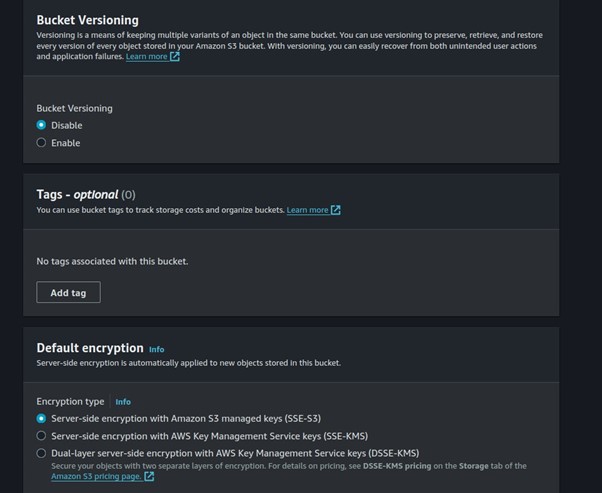
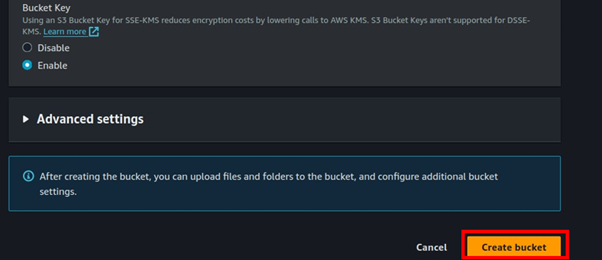
We will leave the remaining settings as default, then scroll down and click Create Bucket.

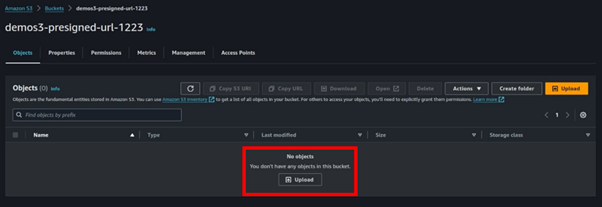
Our s3 bucket has been successfully created.

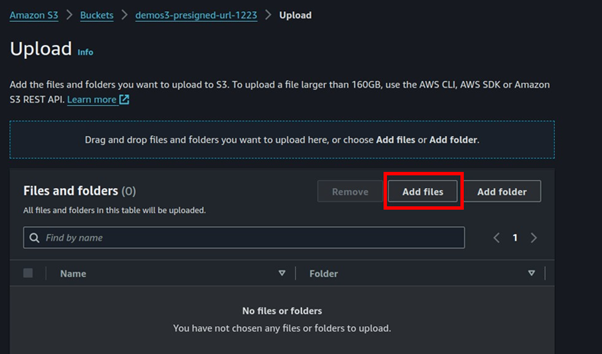
Select your bucket then select upload.

In the upload UI, select add files

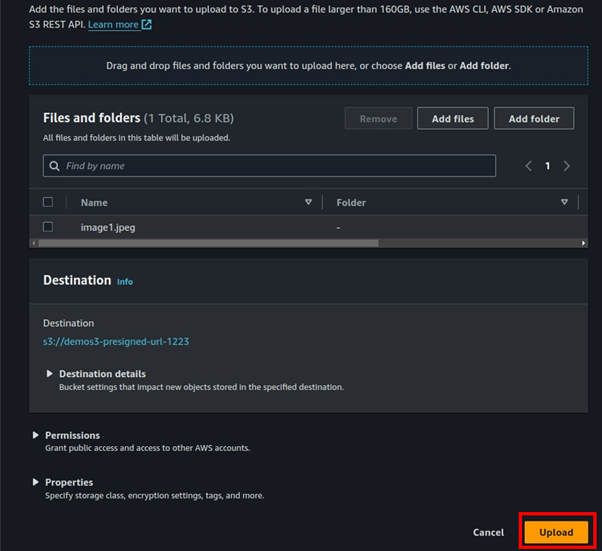
Select your file then click Upload.

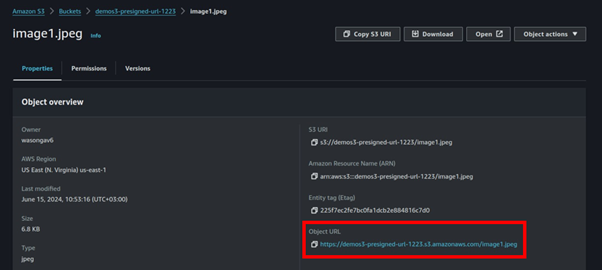
Once our object has been successfully uploaded, remember our bucket is private since we blocked all public access.

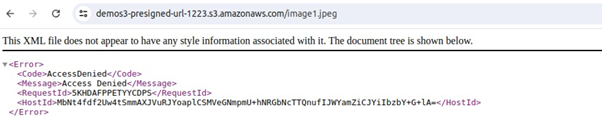
Click the object you uploaded select the object URL then paste it into your Favorite browser.

This was expected, we could not access our object since our bucket is private. We will now leverage the s3 presigned URL to securely access our object without making our bucket public.

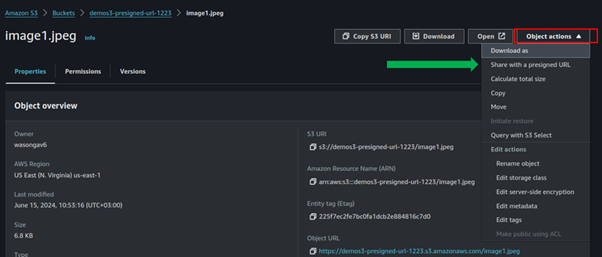
Still, in the object UI, select the drop-down object action. Then select Share with the presigned URL.
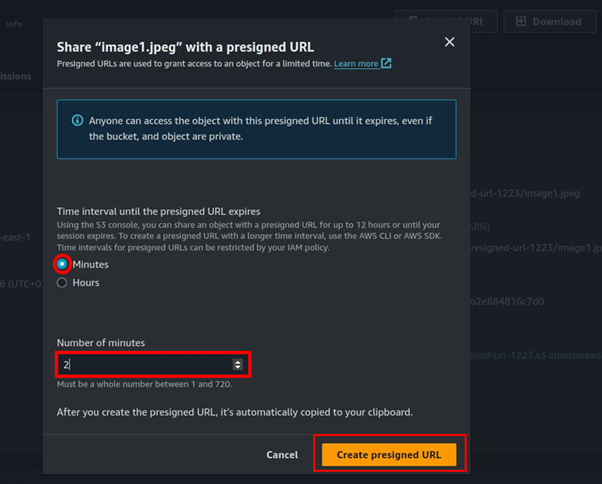
For time interval until the URL expires can be minutes to several hours, for this demo I will only give it 2 minutes. So, select minutes then for number of minutes, select two then click Create presigned URL.

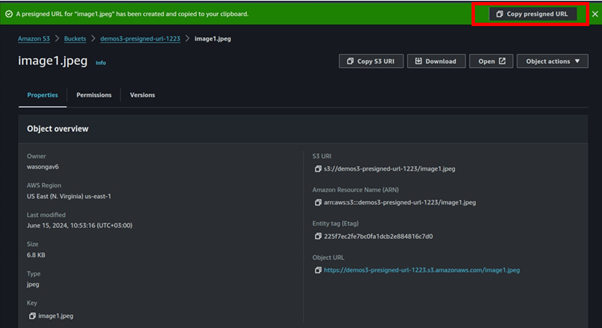
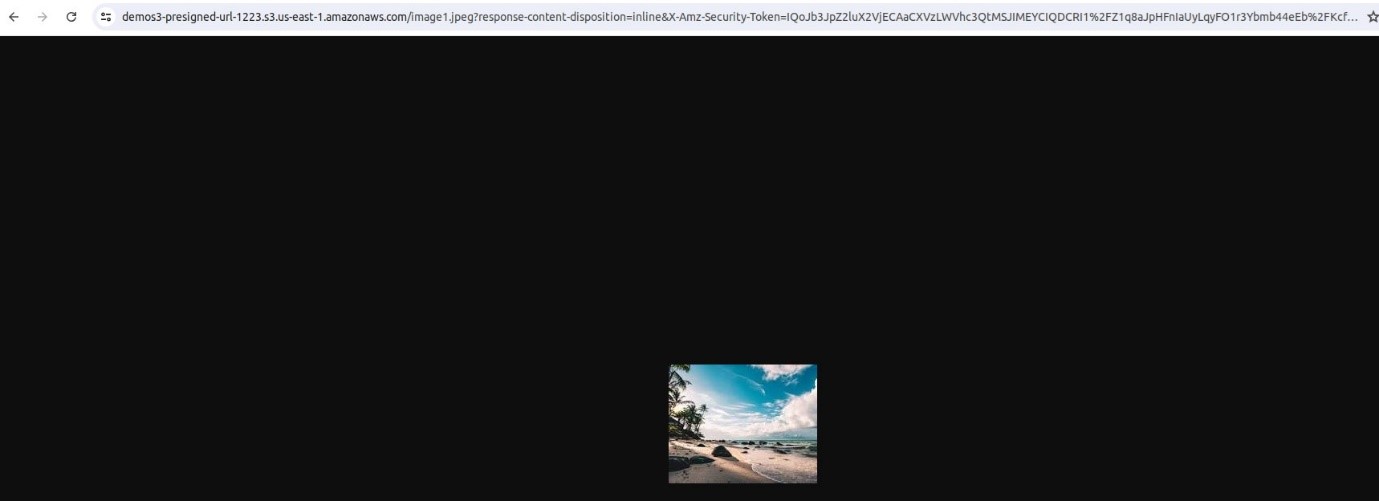
The presigned URL is successfully created, copy the presigned URL then paste it to your browser.

Success now we can access our object.

Since we only gave two minutes for this demo, attempting to access our private object using the presigned URL after it has expired will result in an access denied message as shown bellow.

S3-presigned URLs provide a secure and efficient way to grant temporary access to Amazon S3 objects without exposing AWS credentials. They are easy to implement, allowing controlled, time-limited access for specific operations. This feature enhances data sharing and access management, ensuring security and flexibility in handling S3 resources.

This brings us to the end of this blog. Clean up.

If you have any questions concerning this article or have an AWS project that requires our assistance, please reach out to us by leaving a comment below or email us at sales@accendnetworks.com.

Thank you!

Categories
Blogs

Amazon S3

Enhancing Data Integrity in Amazon S3 with Additional Checksums

In the security world, cryptography uses something called “hashing” to confirm that a file is unchanged. Usually, when a file is hashed, the hash result is published. Next, when a user downloads the file and applies the same hash method, the hash results, or checksums (a string of output that is a set size) are compared. This means if indeed the checksum of the downloaded file and the original file are the same, the two files are identical, confirming that there have been no unexpected changes — for example, file corruption, man-in-the-middle (MITM) attacks, etc. Since hashing is a one-way process, the hashed result cannot be reversed to expose the original data. 

Verify the integrity of an object uploaded to Amazon S3

We can use Amazon S3 features to upload an object with the checksum flag “On” with the checksum algorithm that is used to validate the data during upload (or download) — in this example, as SHA-256. Optionally, you may also specify the checksum value of the object. When Amazon S3 receives an object, it calculates the checksum by leveraging the algorithm that you specified. Now, if the two checksum values do not match, Amazon S3 will generate an error.

Types of Additional Checksums

Various checksum algorithms can be used for verifying data integrity. Some common ones include:

MD5: A widely used algorithm, but less secure against collision attacks.

SHA-256: Provides a higher level of security and is more resistant to collisions.

CRC32: A cyclic redundancy check that is fast but not suitable for cryptographic purposes.

Implementing Additional Checksums

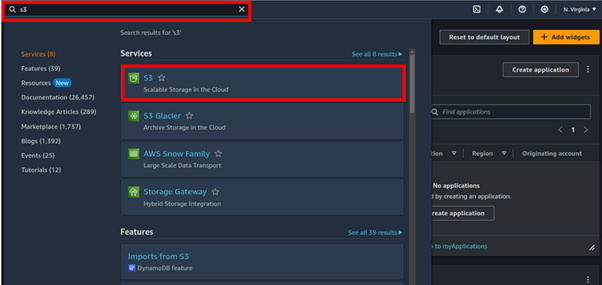
Sign in to the Amazon S3 console. From the AWS console services search bar, enter S3. Under the services search results section, select S3.

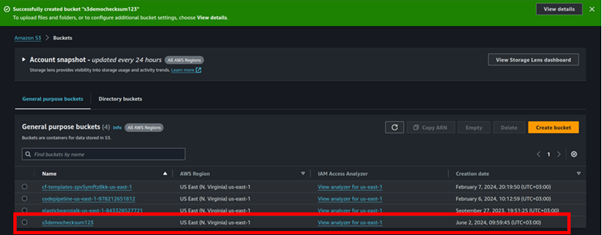
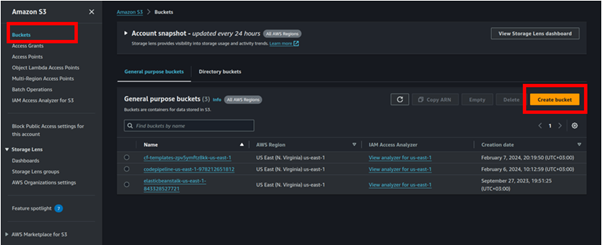
Choose Buckets from the Amazon S3 menu on the left and then choose the Create Bucket button.
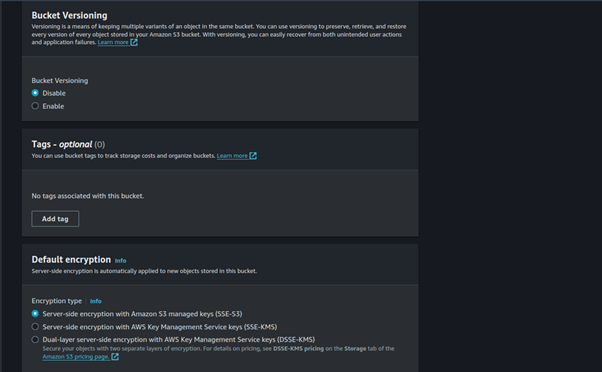
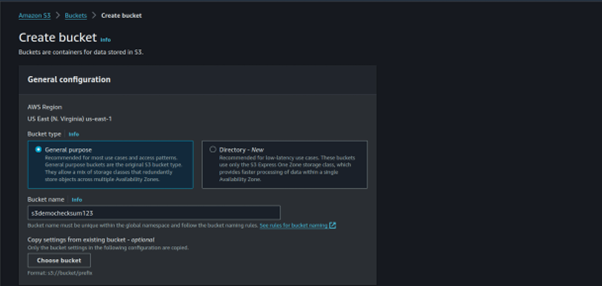
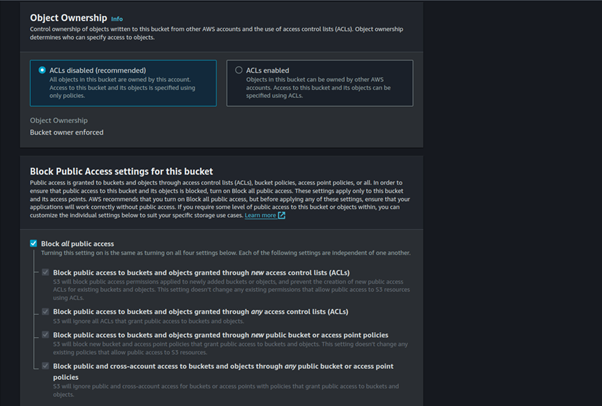
Enter a descriptive globally unique name for your bucket. The default Block Public Access setting is appropriate, so leave this section as is.
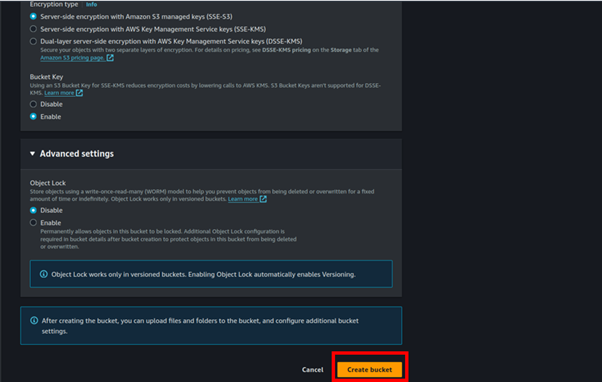
You can leave the remaining options as defaults, navigate to the bottom of the page, and choose Create Bucket.

Our bucket has been successfully created.

Upload a file and specify the checksum algorithm

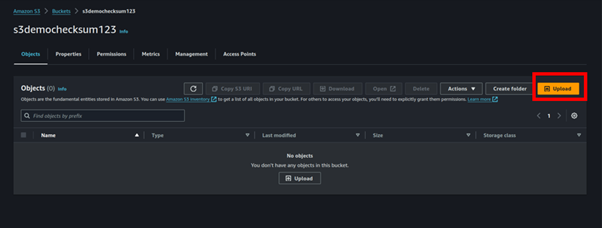
Navigate to the S3 console and select the Buckets menu option. From the list of available buckets, select the bucket name of the bucket you just created.

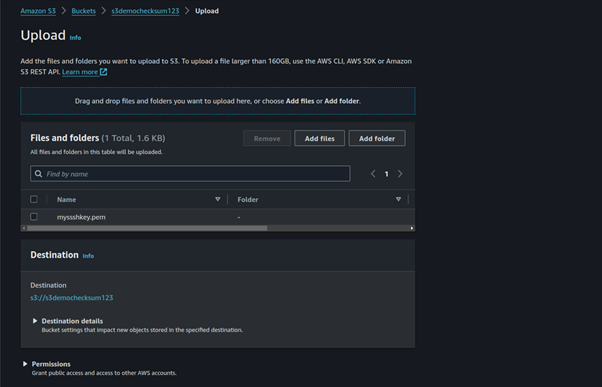
Next, select the Objects tab. Then, from within the Objects section, choose the Upload button.

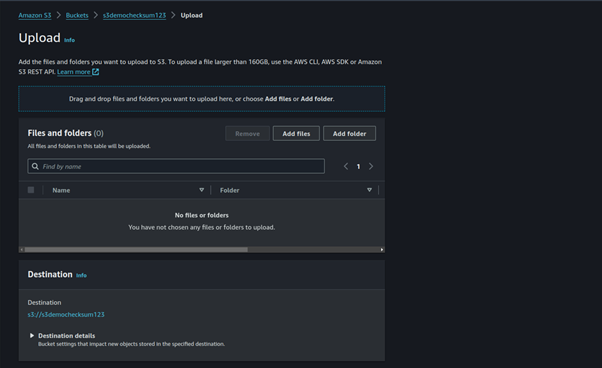
Choose the Add Files button and then select the file you would like to upload from your file browser.

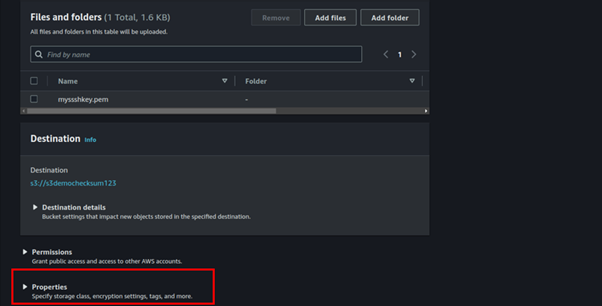
Navigate down the page to find the Properties section. Then, select Properties and expand the section.

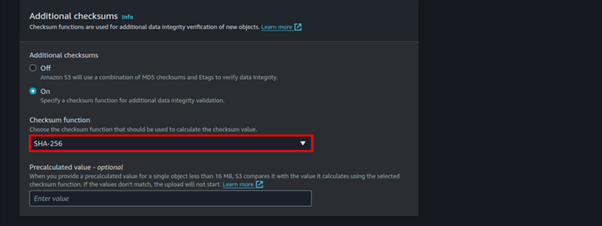
Under Additional checksums select the on option and choose SHA-256.

If your object is less than 16 MB and you have already calculated the SHA-256 checksum (base64 encoded), you can provide it in the Precalculated value input box. To use this functionality for objects larger than 16 MB, you can use the CLI or SDK. When Amazon S3 receives the object, it calculates the checksum by using the algorithm specified. If the checksum values do not match, Amazon S3 generates an error and rejects the upload, but this is optional.

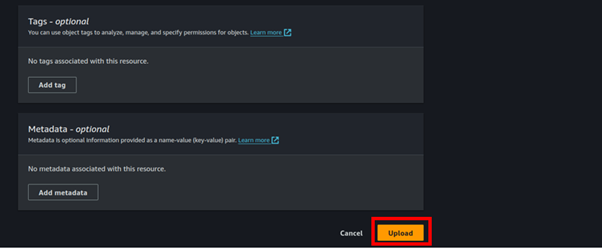
Navigate down the page and choose the Upload button.

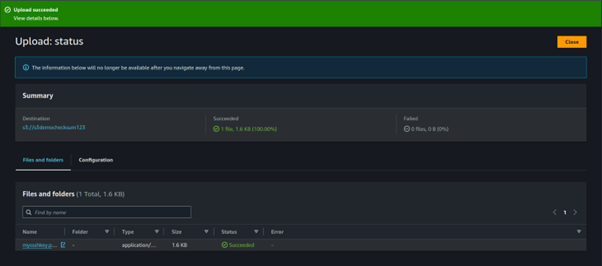
After your upload completes, choose the Close button.

Checksum Verification

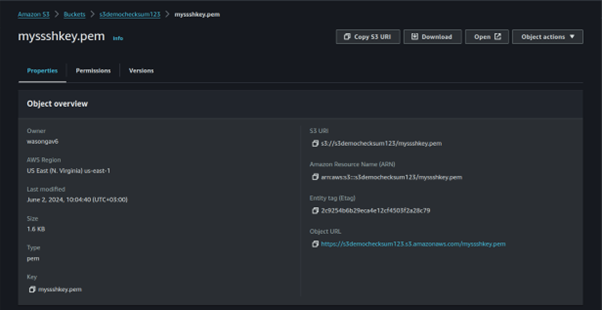
Select the uploaded file by selecting the filename. This will take you to the Properties page.

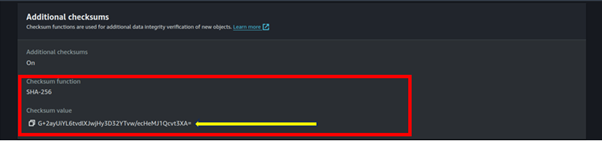
Locate the checksum value: Navigate down the properties page and you will find the Additional checksums section.

This section displays the base64 encoded checksum that Amazon S3 calculated and verified at the time of upload.

Compare

To compare the object in your local computer, open a terminal window and navigate to where your file is.

Use a utility like Shasum to calculate the file. The following command performs a sha256 calculation on the same file and converts the hex output to base64: shasum -a 256 image.jpg | cut -f1 -d\ | xxd -r -p | base64

When comparing this value, it should match the value in the Amazon S3 console.

Run this code by replacing it with your image.

Congratulations! You have learned how to upload a file to Amazon S3, calculate additional checksums, and compare the checksum on Amazon S3 and your local file to verify data integrity.

This brings us to the end of this blog, thanks for reading, and stay tuned for more.

If you have any questions concerning this article or have an AWS project that requires our assistance, please reach out to us by leaving a comment below or email us at sales@accendnetworks.com.

Thank you!